
Offline
An offline photo enhancer for iPhone, when uploading is not worth it.
A lot of photo enhancers assume you are comfortable uploading the image. Local Upscale is for the times when you want to improve the photo on the device you already have.
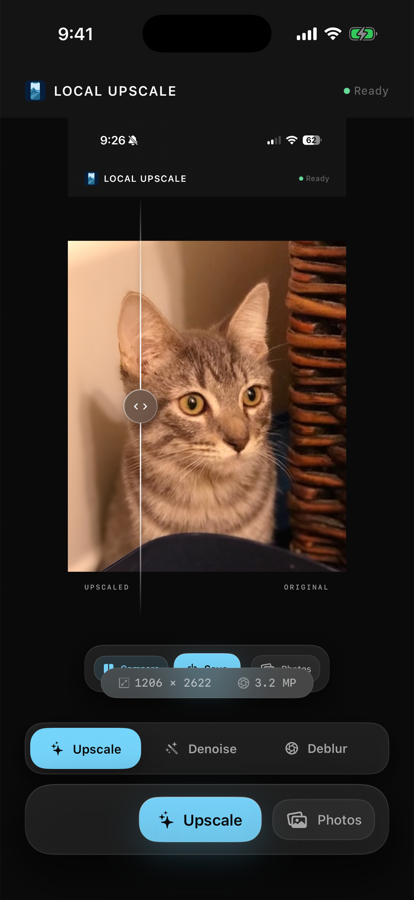
What works offline
Local Upscale can run 4x upscaling, denoise, deblur, and portrait restore locally on supported iPhone and iPad devices. You can compare the before and after result, then save a new image back to Photos.
Choose the mode that matches the photo
Use 4x upscale when the file is too small for sharing, printing, or cropping. Use denoise for grainy low-light images, deblur for soft shots, and portrait restore when the face is the part that matters most. Picking the closest mode gives a better result than running every photo through the same enhancement.
When offline enhancement is the better choice
- Family photos that feel too personal for a web upload.
- Client or work reference images that should stay on device.
- Old scans and portraits you want to improve quickly.
- Travel, school, or weak-network situations where a cloud queue is annoying.
Know the limits
Offline enhancement does not make every image perfect. Severe blur, missing detail, or tiny text can still be limited by the source image. The goal is a clearer copy, not a fake promise that every photo can be fully repaired.
Review before saving
The before-after view matters because some photos need a lighter touch. If the enhanced copy looks too sharp or the original has too little detail to recover, keep the original and try a different mode before saving a new version to Photos.
No account, no ads, no subscription, and no photo-processing backend for the images you choose.